
There are three ways to get a report to someone else: send them a link, download a file, or let Stella email it to them on a schedule.
Send a link
In the panel on the right of the report page, every version has a Share control beside it.
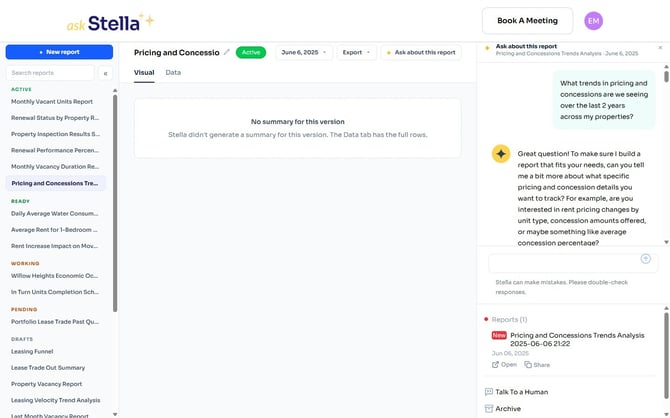
The button is labelled Share where your browser offers a share menu, and Copy Link where it doesn't. Either way it passes on the link to that version's Google spreadsheet, in a message saying who the report is from.
Recipients don't need a Stella account or a Google account to open it.
Anyone with that link can edit the spreadsheet.
The link opens the live spreadsheet with edit access, not view-only access — so a recipient can change the figures everyone else sees, and so can anyone they forward it to. Send it only to people you'd trust with the file itself.
To let someone see the numbers without being able to change your report, send them a file from the Export menu instead. A downloaded file is a copy: whatever the recipient does to it, your report is untouched.
Good to know
A version only has a link once its spreadsheet has been made. Until then the version shows Generating... in place of its Open and Share controls, and Open in Google Sheets is greyed out in the Export menu. The other download options still work.
Good to know
Each version has its own link. Sharing from a particular version sends that version — not whichever one happens to be newest when your recipient opens it.
Download a file
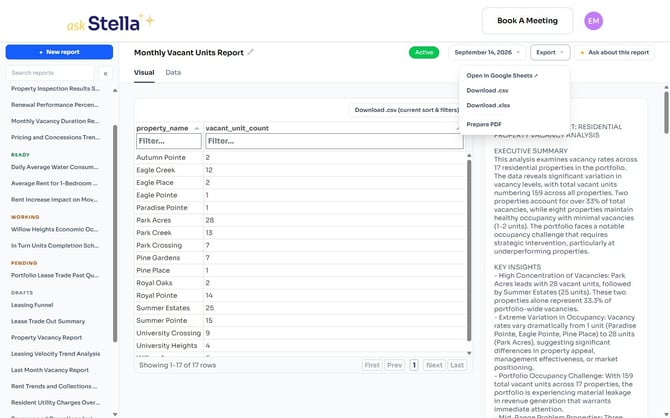
Click Export in the header to take the report away as a file.
|
Option |
What you get |
|---|---|
|
Open in Google Sheets |
The report as a spreadsheet, with its Summary and Data worksheets |
|
Download .csv |
The report's data as a plain comma-separated file |
|
Download .xlsx |
An Excel workbook |
|
Prepare PDF / Download PDF |
The report as a PDF, laid out for printing |
The PDF item reads Prepare PDF when one hasn't been produced yet — clicking it starts that off. Once it's ready, the same item reads Download PDF.
Options that aren't available for a particular version appear greyed out rather than hidden, so you can tell the difference between "not for this version" and "not a thing Stella does".
Good to know
To export only part of a report, filter it first. On the Data tab, filter the columns down to what you want, then use Download .csv (current sort & filters) — you'll get just those rows. Individual blocks on the Visual tab have their own CSV links too.
Let Stella email it
Reports that run on a schedule are emailed out when each version is produced, so the people who need the numbers don't have to come and fetch them.
Depending on what your organisation has enabled, those emails can carry the report as an Excel workbook and as a PDF attached directly to the message — which means a recipient who never signs in to Stella still gets the whole report.
If you'd like attachments switched on, or the recipient list changed, click Talk To a Human.