
Stella has three main areas: the Report List on the left, the report page in the middle, and the chat drawer on the right. This page explains what each one does, so the rest of the guides can get straight to the task at hand.
When you first log in
You'll see your Report List on the left and a prompt to pick a report.
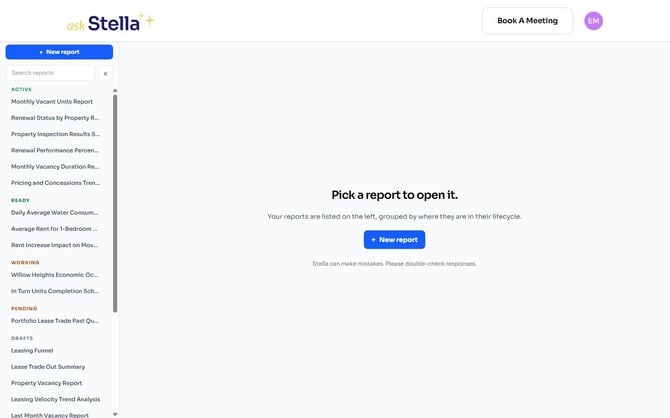
Nothing is selected yet — that's expected. Click any report in the list to open it, or click + New report to start a new one.
The Report List
Your reports are grouped by where they are in their lifecycle, in this order:
|
Group |
What it means |
|---|---|
|
Active |
Approved and running on their schedule |
|
Ready |
A new version is waiting for your review |
|
Working |
Stella is building or updating the report |
|
Pending |
Waiting on a data connection or a subscription before it can run |
|
Drafts |
Still being defined in the chat |
A group only appears when it has something in it, so a short list is normal. Archived reports aren't shown here at all.
Searching
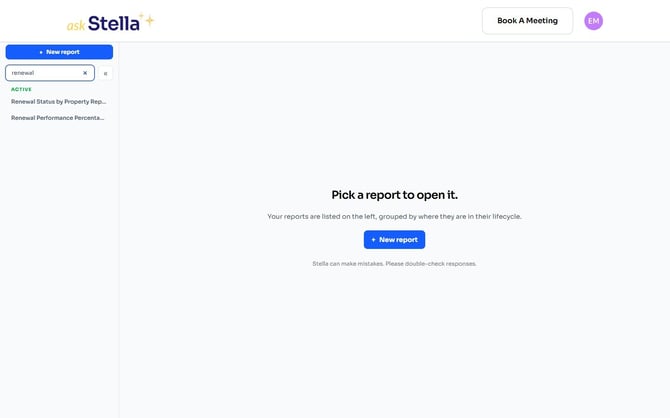
Start typing in Search reports to narrow the list. Only matching reports stay visible, and empty groups drop away while you're searching. Clear the box to bring everything back.
Making more room
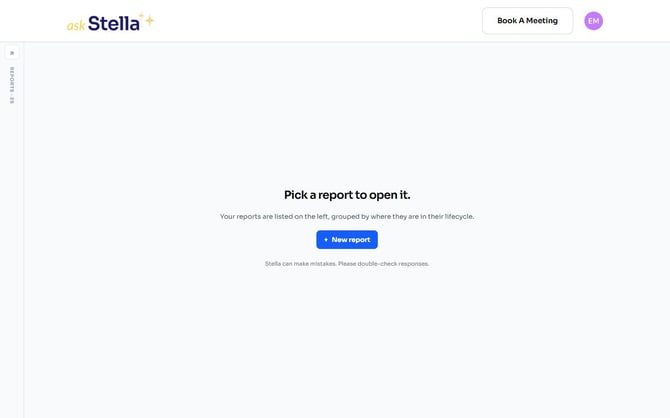
Click the « button to collapse the Report List when you want the full width for a report. It shrinks to a narrow strip that still shows your total report count, and the » button brings it back.
Good to know
Stella remembers whether you left the list open or collapsed, in the browser you set it in — the choice doesn't follow you to another browser or device. On a narrow screen the list always starts collapsed, whatever you last chose, so the report gets the width.
Starting a new report
+ New report opens a single box: describe what you want the report to do, in your own words. There are starter suggestions underneath if you'd rather begin from one of those.
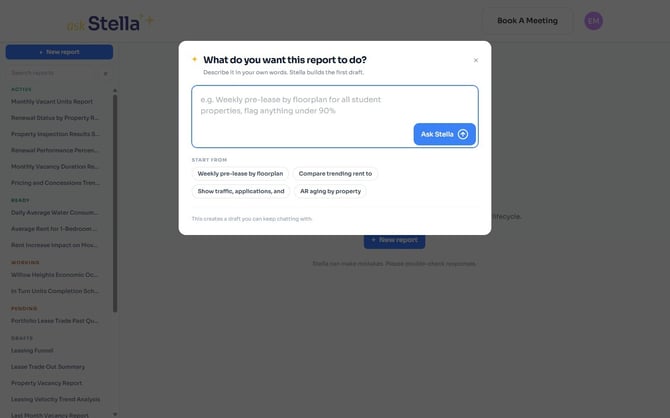
Submitting creates a draft you can keep chatting with — nothing is final at this stage.
The report page
Opening a report gives you the whole report as a page. Along the top you'll find:

- The report name, with a pencil for renaming it
- The status, as a colored label
- The version picker — the date button, which lists every version of this report
- Export — for opening the report in Google Sheets or downloading it
- Ask about this report — opens the chat drawer
Below that are the Visual and Data tabs, which are the two ways of looking at the same report.
The chat drawer
Ask about this report opens a panel on the right. It shows the conversation for this report, and it's where you approve a report, ask for changes, or ask Stella a question about what you're looking at.
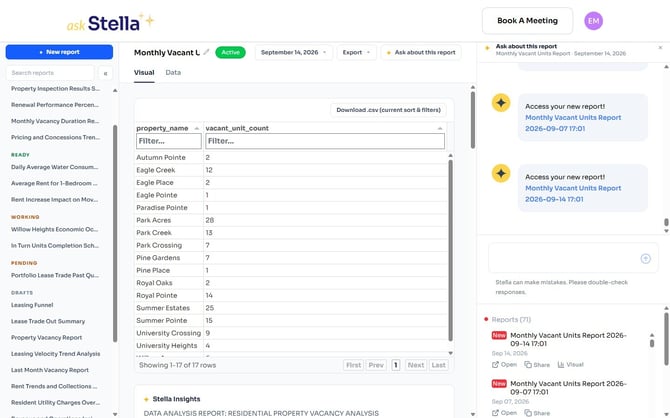
You can always read the conversation. Whether you can add to it depends on the report's status: the box accepts messages while a report is a Draft, or is Ready and you're reviewing it. On Active, Working and Pending reports it's greyed out, and changes go through Talk To a Human.
A banner at the top reminds you which report and which version you're discussing. You can drag the drawer's left edge to make it wider, and close it with the ×.
Versions and actions
Underneath the chat, the same right-hand panel lists every version of the report, newest first, with a New marker on anything you haven't opened yet. Each version has its own Open link and a button to pass its link on — labelled Share where your browser offers a share menu, and Copy Link where it doesn't.
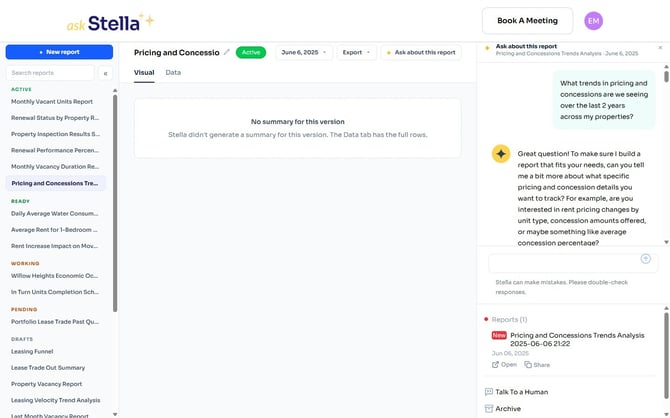
A version whose spreadsheet hasn't been made yet shows Generating... in place of those two controls. It's still readable on the report page, and still downloadable from Export — only the spreadsheet link is missing.
At the bottom of that panel are Talk To a Human and Archive. A report still in Draft also offers Connect Data To Stella; one waiting on a data connection offers Connect Now with a Human instead.
Good to know
Book A Meeting at the top right of every page and Talk To a Human in this panel are different buttons in different places. Either one reaches the Stella team.
On a smaller screen
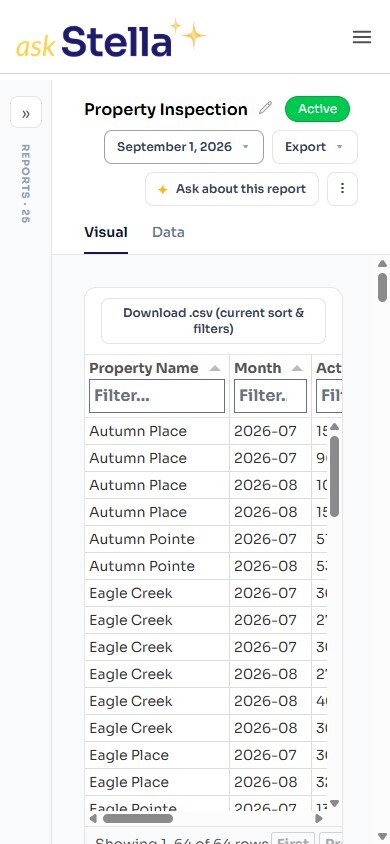
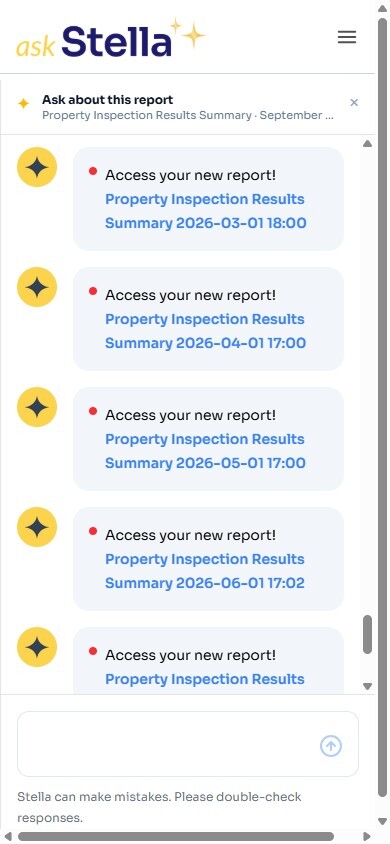
Everything above is still there on a phone or tablet, just stacked differently. The Report List collapses to a strip, the chat drawer covers the report instead of sitting beside it, and a ⋮ button appears in the header for the version and action items.
When you open the chat on a small screen, it covers the report rather than sitting beside it. Close it with the × to get back to the report.
Wide tables scroll sideways within their own box, so you can swipe across the columns without losing the rest of the page.